Pages

Showing posts with label sot23 things. Show all posts

Monday, 15 April 2013

Things 22 and 23: The End

Reflections on 23 Things
On the whole I have enjoyed the 23 Things journey. As I have given my thoughts on the Things as we went along I won't recap them again. 

All of the instructions were very well thought out and written, thank you to the Sot23 Things team for the time and effort you all put in.

I found the whole idea of reflecting on my learning daunting and it made me nervous when it came to writing my first few blog posts. Maybe if the course is re-run it could be adjusted and simplified so participants are asked to have 3 questions in mind when they blog about each thing: what you knew before, what you learn, and how you will use your newfound knowledge in future. That way participants can focus on the Things rather than feeling intimidated by the concept of reflective learning, which may be something totally new to them.
Many of the Things took far more than an hour to explore and blog about, especially the weeks where the Things related to ‘time management’ (oh the irony), ‘networking’ and ‘getting organized’.
I think that future reruns of the course could make it easier for participants to engage and keep on target if more of a community feel was developed. This could take the form of Google Drive being moved to the start of the course and participants being encouraged to write their thoughts/comments/struggles on a shared document that everyone can contribute to. This could also help if people are finding one of the Things difficult as it could function as a help and advice forum, with participants sharing their knowledge and troubleshooting tips.
Alternatively, people could be encouraged to sign up for the course in pairs and write a shared blog. That way they could split the workload when it felt too heavy for one person to manage and would be able to support and encourage each other.
Maybe all participants could be asked to create a blog using the same platform (either Blogger or Wordpress) to make posting comments on each other’s blogs easier. The instructions for turning off the annoying word verification spam filter could be provided at the start; I haven’t used it and have not had any spam (so far!).
The timing of the course was perfect for me as I got my first ever smartphone at the end of last year and it made several of the tasks much easier, especially Flickr and the photography competition (but also adding photos to my blog posts). I know the library has several smartphones and tablet devices available for participants to use but it would be very useful each device came with a set of instructions relevant to the specific tasks, such as how to take photos and upload them to Flickr, and how to access and use the QR code reader.  Again, this is the area where working in pairs or groups could be useful if participants have to get to grips with new technology and new Things all at the same time.
I would change around the order of the Things and replace a few of them with different things.  I would move Google Drive to the second week so that participants could communicate and collaborate more easily and move Creative Commons nearer the start of the course so that participants know from the start which images from the web they can use on their blogs and why.
I would join Things 1 and 2 (create a blog, write a blog post) together as a single Thing and take out LibraryThing (or maybe offer it as an optional extra) which would mean we could add in 2 different Things, maybe YouTube, wikis,  Survey Monkey,  Scoop.it or Storify. I would also take out EndNote and replace it with Sharepoint as that has more relevance to the University of Southampton.

Thank you to everyone who has read or commented on any of my blog posts, but now it’s…

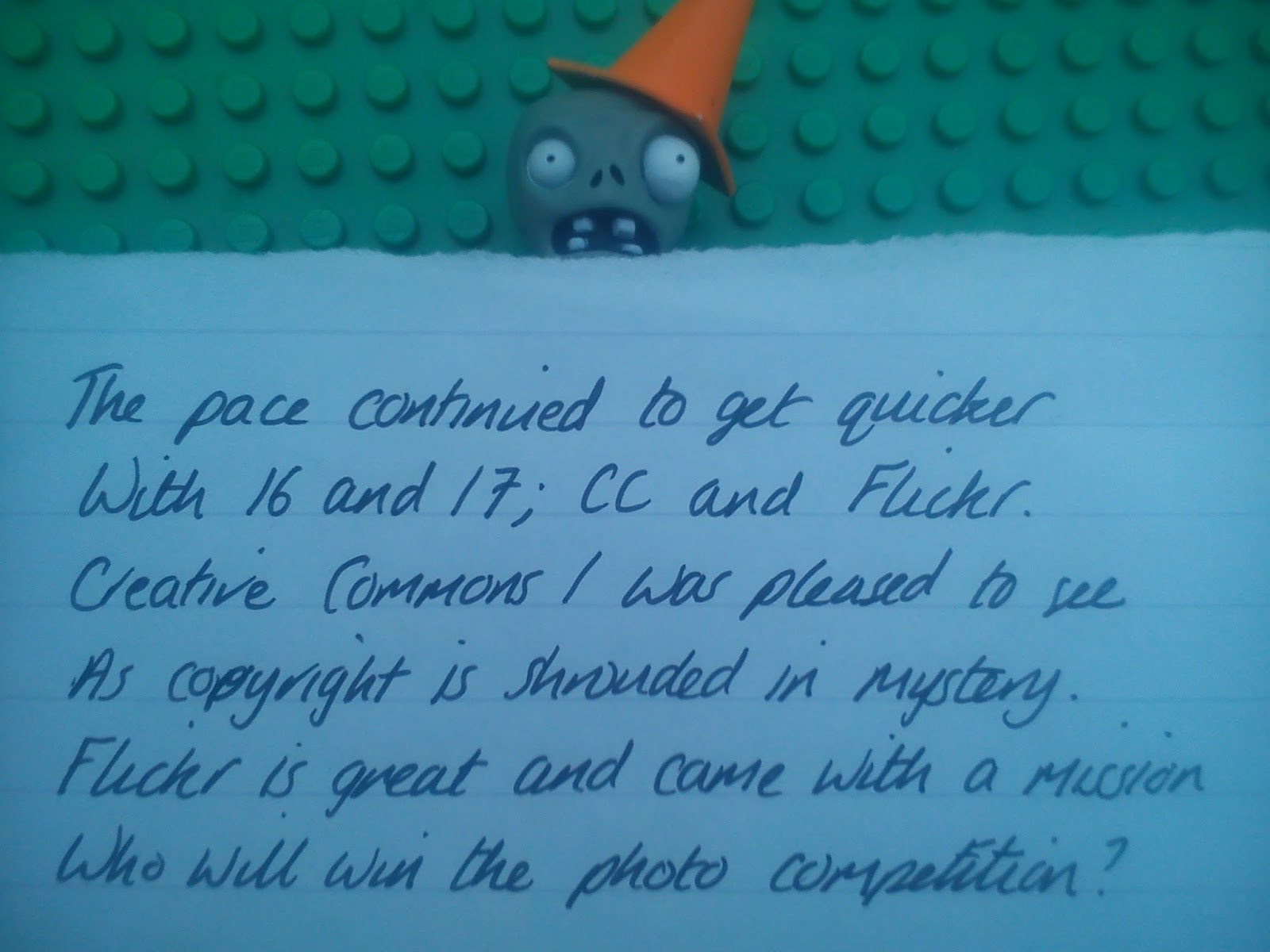
23 Things Summary, Part 2

(No video this time, just the photos below.)


Wednesday, 10 April 2013

23 Things Summary: Part 1

Mr Conehead has kindly helped me compose a poem about our 23 Things journey...

(Also shown as photos underneath as I have a sneaking suspicion that the video may not play properly on all tablet devices)


(All of these photos came through upside down and I couldn't work out how to turn them round so I Googled it - all photos that you add to a Blogger blog are automatically added to your Picasa album and you can rotate them within that, then the change gets carried through to the blog. How cool is that? I didn't even know I had a Picasa album. Still learning!)


...Part 2 is here

Monday, 25 March 2013

Thing 21: Google Drive

I asked in our office whether anyone had used Google Drive and the consensus was that I meant the self-driving car that hit the news headlines a while ago and therefore no, they hadn't tried it.

Google Drive is a service that lets you store your files (photos, videos, presentations, spreadsheets and the like) on the web so you can access them from wherever you are, from whatever device you happen to be using (smartphone, tablet, computer) and share them with whoever you choose. Technical terms that you may wish to add into that sentence include 'cloud storage' and 'file synchronisation'. You get 5GB storage for free then can pay for more if you need to.

Although I haven't used Google Drive before I have used Dropbox which works along similar lines; I use it for transferring photos between my lovely android phone to the iPad or computer. As I mentioned in a previous blog post I hated Dropbox with a passion until I worked out how to use it and now I love it.

Google Drive looks to be equally useful with the added advantage that you can create documents/spreadsheets/presentations/drawings within Google Drive as well as uploading them. I tried this earlier by creating a document and sharing it with a colleague who then added to it (thank you Emma!) so I can see how it could be useful for collaborating on work.

Unsurprisingly if you try to use Google Drive in Internet Explorer it comes up with dire warning messages about unsupported browsers and an unsubtle message that it works best in Google Chrome but it did work for me in IE.

Google Drive is one of the 23 Things that I will probably use in future; this has been a useful Thing to explore.

(Photo added from Dropbox!)

Thursday, 21 March 2013

Thing 20: Slideshare

Slideshare is another one of those things that I'd heard of but had no further knowledge of. I've seen it described as doing for powerpoints what YouTube does for videos and although I agree that powerpoints can be very useful I don't spend that much time actively seeking them out.

I was very disappointed by the lack of search functionality in Slideshare and after about 5 minutes of trying to find an interesting, recent and relevant presentation on various library issues (open access, institutional repositories, 23 things) I changed my strategy and decided to look for presentations on the Ancient Greeks instead?

Why the Ancient Greeks?, I hear you ask. Well my friends, I am doing a MOOC and so far I am really enjoying it and have learnt a lot. Admittedly I am only in week 1 of the course but the lectures (delivered by video) are very engaging and I have successfully passed the multiple choice quiz that went with the learning for this week. If I have enough time I will create my own presentation about it and upload it to Slideshare but for now I leave you with an existing presentation:


I think that Slideshare probably is a very useful educational resource if you want to share your own presentations with colleagues, or if colleagues send you the link to presentations they have uploaded but the search facility is so basic it is infuriating. Because Slideshare is so popular and so heavily used it is very hard to find presentations on specific topics because it returns so many results which can then only be filtered by relevance (hmm), date of upload or file type. I searched for "University of Southampton" and got thousands of results, most of them seemingly irrelevant, whereas I was expecting to see material obviously relating to this specific university at the top of the list. Maybe Slideshare needs a discovery layer? Or maybe it's just me.

Monday, 11 March 2013

Things 19 and 20: Wordle and Tagxedo

I used Wordle in a previous blog post, not realising it was one of the official Things.

Wordle lets you generate word clouds using either your choice of words, or using text it takes from a website. I created the following by entering my blog address as the URL:


It's free, it's fun. it's easy, you can change the font and the colours and the orientation of the words without any effort at all. And best of all:


How generous is that? Thank you wordle.net, you can come round for tea and cake any time.

On a similar note, Thing 20 is Tagxedo which also allows you to create word clouds in the colour, font and...wait for it... shape of your choosing, such as:


or

or even


How great is that? Plus:

Mr Tagxedo, you are also invited for tea and cake. I thank you for your work.

Thing 18: QR Codes

Until last week I had never used a QR code. I was kind of against them in principle because they use technology that is not available to everyone (you need a smartphone or a tablet device to read them) and that goes against my inner moral code.

However, I had a flash of enthusiam for QR codes, caused by 2 things:

1) I was mulling over ideas of photos to submit to the Sot23 Things Flickr competition and I had a flash of genius: why not create a photo of a QR code that leads to a hidden page on this blog, to enter into the Technology category. Not being one to let little things like never having used, let alone created, a QR code stand in my way I immediately set about using my trusty iPad to create my (soon to be) awardwinning image:


Taa-daa!

I then had to download a QR reader app to my smartphone to test it worked, which it did. For those of you without QR readers, this is the secret page if you are interested.


2) I was cackling gleefully to myself about the above flash of genius when I went to collect my children from school and got chatting to the headteacher (I move in high circles). I mentioned QR codes which led to him explaining how they use them in school: they have QR codes next to many of the wall displays and the children use school iPads to scan the codes and find out further information about each topic. He was genuinely enthusiastic about it which must have been contagious because I can now see how QR codes can be a useful tool.

However, I am still a bit dubious about using them in the University of Southampton library system purely because they are not accessible to everyone. I see that they could be a useful add-on but think we need to be careful to ensure that the same information is easily available to those users without the technology to read QR codes.

Friday, 8 March 2013

Thing 17: Creative Commons Part 2

I think it's probably against the law for me to complete 23 Things without posting at least one photo of a kitten, so...

Sleeping baby cat
This photo came from Wikimedia Commons and the photographer has kindly waived all copyright.
Isn't it one of the cutest cat picture you've seen on the internet in the last 2 minutes?

Thursday, 7 March 2013

Thing 17: Creative Commons Images

Marwell by Stephen Burch
Marwell, a photo by Stephen Burch on Flickr.


I found this photo by doing an advanced search on Flickr, using Marwell as my search term and ticking the 'only search within Creative Commons-licensed content'. I love the way giraffes often look intrigued in photos and this one in particular seems very interested in the photographer.

I used the 'share' feature in Flickr to upload the picture directly to my blog, which pulls through the attribution information and allows you to click on it and see the original photo on Flickr. That's the kind of technology I like!

Here is my Flickr photostream

Wednesday, 6 March 2013

Thing 16: Flickr

In the Shadows by Nicki Clarkson
In the Shadows, a photo by Nicki Clarkson on Flickr.

I like Flickr a lot.

Thing 16 has given me the perfect excuse to take random photos with my lovely smartphone and play around with editing them; the image above was modified from a photo of a tree with blue sky and the sun streaming through in about 10 seconds using a free iPad app* (called PhotoPad) and that's just the tip of the iceberg -  there is so much more you could do. I could happily spend entire days editing photos on my phone or using free iPad apps then sharing them on Flickr.

Flickr itself is very straightforward (although works better on a computer than an iPad); you can choose whether to have your photos available for public viewing or private, you can arrange them into sets, and you can upload a lot of photos for free without having to pay to upgrade to the 'Pro' membership (although only the most recent 200 will be displayed). You can also connect Flickr to your blog to easily insert photos to blog posts, as above.

The hardest part is coming up with interesting names for your photos!

*From my phone to Dropbox, then from Dropbox to the iPad camera roll, selected within the app, resaved to the camera roll then uploaded to Flickr.

Friday, 1 March 2013

Thing 15: LibraryThing

LibraryThing allows you to catalogue your own book collection online, adding tags, reviews and ratings that the entire LibraryThing community can share.

As with several of the Things, I can see why some people want to use LibraryThing but it's not for me. Although I read a lot I am fairly ruthless at getting rid of books unless I love them so I have a small, managable collection that does not really need cataloguing. I know what I've got and where it is, supplemented with transient additions from charity shops and the library that only stay in my collection for a short while.

I did sign up to LibraryThing, mostly in the hope I could use my mobile phone as a scanner to import books and that it would make a cool noise as I scanned book barcodes. Alas although you can (I think) scan using a phone you need to install stuff* to make it work so I gave up on that plan.

I was disappointed with the 'add books' function; I wanted to add 20 books in the same series (Beast Quest if you're interested) and I thought I would be able to mark a list then add them all at the same time but instead I had to do each one individually. Although this is probably a plus for anyone who is interested in genuinely using LibraryThing because as you add each title you get the chance to edit the bibliographic information, add tags, add a review etc.

I was pleased to see that it automatically grouped my books into series, and also showed which other books in the series I was missing. The 'if you like this you might also like...' suggestions were interesting and came up with a couple of authors I hadn't heard of.


*I've forgotten what exactly. I was tempted to put 'apps' instead of 'stuff' so I sounded like I knew what I was talking about but decided to go with honesty in case it's software not technically classified as an app.

Thursday, 28 February 2013

Thing 14 Part 2: Mendeley

Thing 14 includes not only Delicious but also Mendeley.

Mendeley is a free online reference manager software and on first impressions it gets a thumbs up. I will say at this point that I haven't actually tried using it but I watched the series of 'Mendeley Minute' help guides and I was very impressed. I didn't create an account partly because I don't actually need to manage any references, and partly because I read the warning that installing the add-on might interfere with Endnote, which I do have to use for work.

The reason I use Endnote is to import references from reading lists but that is all I do; I'm not the one who uses the data once it's in there and my feelings based on my very limited experience are that I don't like it. It doesn't feel user friendly, the interface does not appeal to me, and the methods of import seem clunky compared to other systems I have used, such as ePrints.

However, I see the value in reference manager software and if I was to set out on a research path I would try Mendeley. From watching the help videos it looks straightforward and logical; easy to import and sort references, easy to insert the references into your work, and easy to arrange the bibiography in the style that you need. I did a quick Google search on Endnote v Mendeley (that was not my actual search query!) and the only downside to Mendeley that I came across was the inability to use a modified referencing style, for example those used by several University of Southampton departments.

I came across this blog post on the University of Warwick PhD Life Blog which gives a nice summary of the positives of Mendeley.

So although I am not planning to use Mendeley it looks like a useful and user friendly free tool that I would definitely choose over Endnote.

I did read through the optional extra task of looking at Endnote Web and although I would like to do it so I can more fairly compare Endnote with Mendeley I don't have time this week.

Thing 14 Part 1: Delicious


Slightly embarrassed to admit that although I only set up my Delicious account on Monday I have already forgotten what I used as a username so can't actually access it at the moment...

Before setting up the account I did try to use the 'Sign in with Twitter' option when I first looked at it (thinking it would save me having to remember yet another username/password...) but using Internet Explorer it didn't work at all. I switched to Chrome, and although it still didn't work it did kindly inform me that it was in a loop so I gave up on that idea.

So what is Delicious? In their words:
It was easy to add links, and add tags to them, but I haven't got as far as seeing how you can then organise your links - it's going to take some time to get a feel for it and find out what it is useful for (once I've successfully signed in of course...) but for now I see it as similar to Netvibes; interesting to know about and I will explore it further when I have time. I would like to find a way to organise all the Open Access weblinks that I've found and Delicious could well be the way to do it (at the moment I email them to myself which probably isn't the most efficient way of doing things).

Verdict so far: cautiously optimistic and I will hopefully use Delicious over the next few weeks and then report back before the end of the 23 Things.


(Update, 17/4/13: I haven't gone back to look at Delicious and I'm probably not going to. Shame on me, I could be missing out on a useful tool here.)

Friday, 22 February 2013

Thing 13: Reflecting on Things 1-12

So we're halfway through the 23 Things and it's Reflection Week. Here are my thoughts:

Things 1-3 (Publishing on the web)

This was easy and fun: creating this blog, writing my first post and exploring other Sot23 Things blogs. I like writing posts and it has been interesting, although sometimes frustrating, to see how the Blogger functionality varies between the web version accessed on a computer, the web version accessed on an iPad, and the iPad app. It's also interesting to read the views of my colleagues in their blog posts and I am delighted to have recently found out who LundintheLibrary is! It's a shame it isn't easier to post comments on a Wordpress blog without having a Wordpress account, it means I can only comment on other Sot 23ers who have a Blogger blog.

Things 4-6 (Keeping up to date)

These Things involved Netvibes and RSS feeds. Again, interesting to explore but Netvibes isn't for me at the moment (although I might use it for work in the future) and although I can see why some people may like RSS feeds I prefer to receive email alerts or use my newly discovered liking of Twitter to gather information.

Things 7-9 (Time management)

This was useful in that I had no idea that free online meeting schedulers (is that a word?) such as Doodle existed...but although I like the concept I will continue to use good old fashioned emailing or checking Outlook calendars to arrange work meetings, and phone/email/text/Facebook to arrange social meetings. Doodle worked well to arrange fake meetings for the purposes of the 23 Things, and probably if I used it frequently I would grow to love it but at the moment it seems an extra step that creates rather than reduces effort; you have to use email to send the Doodle link and I think I would prefer to list the possible times/dates in an email and ask people to reply directly. I admit to not having to arrange meetings with huge numbers of people though so Doodle wasn't really relevant to me.

Thing 9 was installing Firefox and Chrome and exploring the differences between the browsers. As with several of the Things this took much longer than an hour and I still only scratched the surface. I am surprised that the University does not provide our work computers with the most up to date version of each browser but using Chrome and IE for different tasks works for me, and I'm still not over my irrational dislike of Firefox.

Things 10-12 (Networking)

My perception and use of Twitter has changed as a direct result of the 23 Things. Previously I'd thought #whybother but now I see how it can be useful for keeping up to date with local news and a valuable tool for searching by subject for current information. I am firmly a follower rather than a tweeter though.

My views on Facebook haven't changed; it's great for communicating with friends and family and can be a useful source of information and is an additional way for businesses to attempt to connect with their users. I stand by my view of library Facebook pages, expressed in this previous post.

Investigating LinkedIn was Thing 12 - not a tool I need to use at the moment but interesting to see how many people use it, and the varying amount of effort they put into their profiles.


That brings us up to now. My only general reflection relates to the sheer amount of time it takes to explore each Thing in order to have more than a superficial opinion about it, much more than 1 hour a week. Bring on the next Thing!

Thursday, 14 February 2013

Thing 12: LinkedIn

I'm not going to spend much time looking at LinkedIn, partly because I'm not going to sign up for it so the amount of digging I can do on it will be limited, and partly because I'm determined to spend more time on Twitter as so far I am still not loving it.

LinkedIn is probably the best known professional networking site, with over 200 million members worldwide. I searched for a few people I knew to be on there; those with unusual names I found without a problem, read their career history and clicked onto their personal/business webpage. Those with more common names I couldn't find; as an incentive to sign up you can only see the first 25 profiles for each name if you're not logged in, and although you can refine to search by UK only that still didn't help me find 1 person. You also need to sign in to be able to see the LinkedIn Connections that each person has.

I did a Google search looking for opinions of LinkedIn and it seems to be highly valued in some business areas, especially IT. I came across this recent Guardian article that reminded me the main purpose of sites like LinkedIn are to make money - interesting reading, including the range of opinions in the comments at the bottom; some saying LinkedIn is valuable to them, others slightly more negative.

If I was job hunting I would create a LinkedIn profile because it's free and there is always the chance it could be useful but for now I'm happy with face to face networking in the staff room with my current colleagues.


...I've had another quick look at LinkedIn, this time from the iPad. I'm still not signed in but this seems to show greater functionality than looking at it on a computer. I found the profile of someone I know and it had a clickable link to Skills and Expertise. I selected Fresh Produce and it took me to the page shown below. Interesting to see that Barack Obama is a fresh produce professional. Also interesting to see in the links on the left of the screen you can select 'Breathing' as a related skill...

Tuesday, 12 February 2013

Thing 11: Facebook Part 2

I like Facebook.

My brother lives in France, my sister-in-law is in Dubai and I have friends in far away places like Australia and Swindon so I love being able to keep in contact so easily. I know I said this in my last post but Facebook seems so much more personal than Twitter.

Although I mostly use Facebook for friends I have 'liked' a few pages; the University of Southampton library, Hampshire Constabulary (always interesting to read the comments under any of their posts) and Sophos Naked Security. That last one is great for picking up changes to Facebook privacy policies as soon as they happen and gives useful, non-patronising advice.

I belong to one Facebook 'group' that a friend set up. Anything we post to the group can only be seen by other group members so it's an excellent way of all staying in the loop without having to think about who can see what we're writing; to me it is a very useful feature.

I'm not sure if I should say this so I'll whisper it...I'm not convinced of the value of university libraries having Facebook pages. I understand that different people like to access information in different ways but I think of all the means we have of communicating with our users Facebook and Twitter are the least useful.

I have looked at various official university library Facebook pages and none of them seem to reach a very large audience; the numbers of likes for all of them is a small percentage of the number of likes the  official page for each institution has. The library Facebook pages that are reaching a larger audience are the unofficial ones, like a page for commenting on amusing graffiti in the toilets for one university library, or where people can comment on students they've seen in their university library (I'm not naming them but they're not hard to find).

I see that a valuable use of library Twitter and Facebook pages is broadcasting urgent information, such as snow closures but otherwise I'd put my money less on social networking forms of communication and more on email, the website, Live Chat, phone enquiries and good old face to face help at the Reception, Loans and Enquiries desks.

If I had my own academic library would I have a Facebook page? Probably, but more because other academic libraries do than because I think it's a priority. I would be aware that I would need to invest staff time in maintaining the page, keeping it up to date and engaging. I would consider using questions received via other enquiry routes that might be of general interest and repurposing them on the Facebook page (without identifying the original enquirer of course) in the hope of sparking further queries directly from Facebook. I would also have the member of library staff posting on Facebook give their first name, in the same way we do for Live Chat queries, to make the user experience more personal and friendly.

We've been asked to think about possible problems with having a library Facebook page. Two spring to mind; firstly finding the staff time to maintain it/post something relevant to most users on a regular basis/answer queries and secondly the possibility that people may use it as a place to vent frustrations, for example if they had poor exam results and wanted to complain for the sake of complaining rather than for constructive reasons. Oh, and there's always the chance that people will 'like' the page and then use it to advertise their business/services by posting, which may make it look like the library was endorsing the product or service.

Things 10 and 11: Twitter & Facebook Part 1

I created a Twitter account several years ago to see what all the fuss was about but never had a mad rush of enthusiasm for it and left it to fend for itself. I also have a Facebook account that I use a lot - it's such an easy way of sharing news and photos with friends and family who don't live locally.

At the moment my perception is that Facebook is a great way of communicating with genuine friends that encourages interaction, whereas Twitter is less personal and therefore, to me, less satisfying. I know that many people love Twitter and use it in different ways, from keeping up to date with sports news (#notme), following celebrities and posting cat pictures. We're not even halfway through the week yet so I'm posting this to express my current view - I wonder if it will have changed by the end of the week when we have all engaged fully with the Twitter task.

I was surprised that the official Twitter how to get started guide emphasises that the real value of Twitter is in reading information, not contributing information:


I like the help and support information, it seems to be pitched at exactly the right level - useful without making the reader feel stupid. In fact, at the moment I'd say the help guide is the thing I like best about Twitter...along with the noise it makes in the iPad app when you pull down the screen to refresh it.


...It's now Friday and I've been trying to engage with Twitter. I will post again in a few days with my reflections, but wanted to add that I am affronted Twitter seems so surprised whenever someone replies to one of my tweets. This is from the notification email:
Is that exclamation mark necessary? Huh.

Monday, 4 February 2013

Thing 9: Browsers

I admit that I regularly use Internet Explorer at work because I am a creature of habit and I like knowing where everything is, not because I particularly love it above any other browser.

I do use Google Chrome as well. When I am monitoring the library Live Chat facility I have that open in Chrome for 2 reasons: firstly because it gives you desktop notifications of any new chats in addition to an audible ping, and secondly because if I have it open in Internet Explorer I tend to close it down accidentally by clicking 'yes' to close all tabs when what I mean is 'close all the other tabs but not that one'.

I have an irrational dislike of Firefox. I'm not sure what it is; it's got a cool, superhero name, the functionality is no worse (and possibly even better) than IE, it doesn't look strange and fearful. I think it's based on the fact that on one of the computers I use at work it doesn't seem to work properly, although on my office PC it is fine.

If I had to pick a favourite browser I would probably choose Chrome so I might use that more at work and switch to Firefox to monitor Live Chat (again you can enable desktop notifications which I don't think you can do in IE).

It was interesting to look at the keyboard shortcuts for the different browsers; I use 'paste as plain text' a lot so it's useful to know that I can use the shortcut ctrl + shift + V instead of right-clicking.

Things 7 and 8: Doodle

Doodle is another thing (along with NetVibes) that I had not even heard of before starting 23 Things. Who would have thought that there are free tools on the internet to allow you to schedule meetings with any of your email contacts? And they don't even make you create an account.

Doodle is not the only free online event scheduling tool but from my brief research earlier it looks like they all do much the same thing - others are mentioned in the comments on this Tech Crunch article. There is an excellent decription and review of Doodle on the Wired Impact blog so I won't go into details about how it works.

Like everything, using Doodle for the first time was slightly confusing, but conversely that was mostly down to the simplicity of it - I was looking for extra fields that needed to be filled in but that was me overcomplicating things. Once you know what you're looking at it is very straightforward and we had clear, concise instructions on how to use it. I can see how it would be useful for people trying to arrange a meeting with a lot of people ('participants', in nice non-jargony Doodle speak)...but only if most (if not all) of the participants engage with it, otherwise it would be immensely frustrating that people weren't using your lovely, efficient way of finding an appropriate meeting time.

I was also invited to take part in a Doodle poll by a colleague, and it is just as easy to respond as the invitee as it is to be the inviter.

You can even set Doodle to sync with your Outlook calendar, but you do need to register for a (free) account to do that so I did not try it. I did add it to my NetVibes page though, which is Thing 8.

Onto the next Thing shortly but first:


This is a word cloud made from words in my blog using the brilliant (and free) Wordle toy. I left the Enquiry Counter on there as evidence that I have been doing some work today, not because I couldn't work out how to remove it, no...